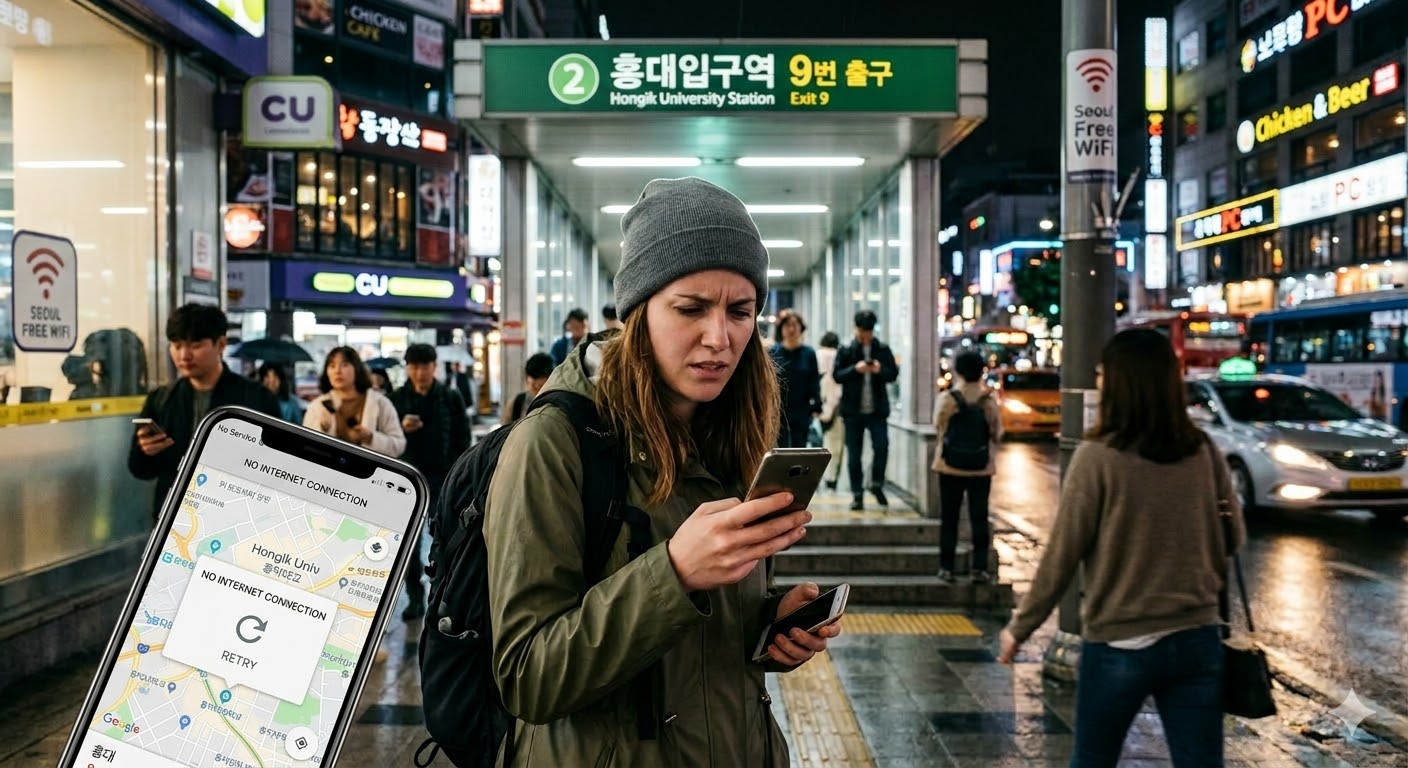
If maps and messages stop loading in Korea, first check whether you have a mobile-data problem, an unfinished Wi-Fi sign-in, or a phone that is running out of power. The next step depends on which one has failed. Keep your hotel address and the next booking within reach while you restore the connection.
Updated 21 October 2026. Device and carrier guidance checked against the official sources linked below. Menu names vary by phone and software version.
Start with what still works
Stop somewhere you can use the phone without blocking an exit or crossing. If it is nearly empty, connect your own charger or power bank before attempting a restart. If a hotel address or ticket is already visible, save the details before leaving that screen.
| What you see | What to check next |
|---|---|
| Wi-Fi works, but nothing loads when you turn it off | Check the selected data SIM, whether that line is enabled, and whether the purchased plan is active. |
| The phone says it is connected to Wi-Fi, but pages do not open | Look for the network’s sign-in notification or welcome page. Confirm the network name and access instructions with staff. |
| Only one app fails; a normal webpage loads | Try that service’s official website or support. Do not assume the entire SIM has failed. |
| No Service or Searching appears | Check that your travel line is on, try reconnecting, and ask the provider to check activation and coverage. |
| The phone has shut down | A screenshot stored on that phone cannot help until it has power. Use a paper address or a companion’s saved copy and ask for a charging point. |
If someone is waiting for you, send one practical message when a connection is available: your station or landmark, the exit number if you know it, and where you intend to wait. A message that remains unsent has not notified them.
Where to get a connection or charge the phone
At Incheon Airport
The airport lists free Wi-Fi and phone-charging facilities. Its charging guide distinguishes general-area charging towers from facilities inside the duty-free area. After entering Korea, ask for a point in the public arrivals area; a departure-side facility may be inaccessible to you.
If you bought a SIM at an airport counter, take the phone and purchase confirmation back to that provider before leaving, where practical. Our Incheon Airport eSIM guide has provider and counter information. A counter for a different company may not be able to repair your plan.
At your accommodation or a café
At your booked hotel, ask the front desk for the Wi-Fi name and password, and whether you can charge the phone. At a café, check access and socket availability before ordering specifically to solve this problem. Seating, outlets and guest Wi-Fi depend on the venue; do not assume every café or convenience store provides them.
For a public hotspot, follow the signs or staff instructions. A network showing in the list does not establish that it is free, usable by your device or operated by the place beside you. Use our public Wi-Fi guide for the separate hotspot topic.
Once connected, retrieve the hotel address, immediate ticket and provider support details first. If power remains limited, postpone photo uploads and large downloads until the phone is charging.
Check mobile data without removing your eSIM
Use your order confirmation to identify the company that sold the plan. A reseller’s eSIM can connect to a Korean network while still requiring support from the reseller. Follow the setup instructions for the exact product you purchased.
iPhone
- Open Settings → Cellular (called Mobile Data in some regions). Check that the travel line is enabled and that it is the line selected for cellular data.
- If there is no service, Apple’s reconnect procedure is to turn Airplane Mode on for at least 15 seconds, then turn it off. Restart the phone if needed and if you have sufficient power.
- Check the roaming instruction supplied with your plan. Enable data roaming on the travel line if that provider requires it. Do not switch roaming on for your home line without checking its charges.
- With Wi-Fi available, open Settings → General → About and check whether a carrier-settings update is offered. If the line is missing or remains unusable, contact the provider.
Reference: Apple’s mobile-network troubleshooting guide.
Google Pixel and other Android phones
On Pixel, Google’s current route is Settings → Network & Internet → SIMs. Check Mobile data and Use SIM for the intended carrier. Once you have saved anything needed from Wi-Fi, temporarily turn Wi-Fi off to test the mobile connection. Google’s troubleshooting guide also suggests powering the phone off, waiting 30 seconds and turning it on again.
These are Pixel instructions. Samsung and other Android phones use different menus; check the manufacturer and plan provider’s guide for your model. Reference: Google Pixel mobile-connectivity help.
If the basic checks fail
- KT purchase: compare your setup with the official KT SIM/eSIM user guide. It includes carrier and APN checks. Do not apply its settings to a product bought from another provider merely because the screen shows KT.
- LG U+ purchase: use the official Korea SIM/eSIM support page and its support options. Check the order’s validity and activation information before buying another plan.
- Other provider or reseller: open the support link in your purchase confirmation. Ask them to check activation, remaining allowance, validity and the required network settings.
Send support the device model, operating-system version, purchase reference, displayed network and exact error, using the provider’s official support channel. A useful report is: “Wi-Fi works; mobile data does not. The travel line is enabled. I have tried reconnecting and restarting.” Keep installation QR codes and account details out of public posts.
Save the travel details you will need without data
Before leaving a working connection, save the information for your next journey locally. Open each saved item with Wi-Fi and mobile data temporarily turned off to check that it is actually available. Restore your normal connection settings afterward. A bookmarked webpage or an email attachment that has never downloaded is not a tested offline copy.
| Save this | Include these details |
|---|---|
| Accommodation | Korean and English property names, full address, telephone number, booked name, arrival instructions, entrance photo or floor if the property supplied one. |
| Next journey | Origin, destination, line or service, direction, transfer, final station exit and a close view of the destination approach. A static image does not update delays or your position. |
| Tickets and reservations | Confirmation number, booked name, date, departure or entry time and the issuer’s instructions for presenting the actual ticket. |
| Connection support | Provider name, purchase reference and official help route. Keep activation details securely stored. |
| Meeting plan | One agreed meeting place and a contact method shared with your travel companion. |
A booking screenshot is a reference, not a universal ticket. Follow the operator’s rules for the original ticket, live barcode, identity check or exchange voucher. Do not assume a static image will be accepted. For rail travel, see our KTX boarding guide.
Copy the following into a local note or onto paper. Keep door codes, passport details and payment information off a card you might hand to a stranger.
Hotel name in Korean: ____________________
Full street address: ____________________
Hotel telephone: ____________________
Entrance / floor / landmark: ____________________
Next destination and station exit: ____________________
Departure or entry time: ____________________
Reservation reference, kept privately: ____________________
Travel companion / meeting point: ____________________
SIM provider and support route: ____________________
Carry at least the hotel name, address and telephone number outside the phone. If traveling together, share the day’s essential details with a second person and confirm that their copy opens. This gives you a usable address even if the main phone is flat or unavailable.
For entrance, reservation-name and arrival issues, continue with the hotel check-in guide. For address searches, see the Korean map-app guide.
Short Korean phrases to show staff
| English | Korean |
|---|---|
| My mobile data is not working. | 휴대폰 데이터가 안 돼요. |
| Can I use Wi-Fi here? | 여기 와이파이를 사용할 수 있나요? |
| What is the Wi-Fi password? | 와이파이 비밀번호가 뭐예요? |
| May I charge my phone here? | 여기서 휴대폰을 충전해도 되나요? |
| Please take me to this address. | 이 주소로 가 주세요. |
| Could you call this hotel for me? | 이 호텔에 전화해 주실 수 있나요? |
This guide combines connection recovery and travel-information backup. The checklist and phrases are editorial tools. Device procedures are based on the linked manufacturer documentation; carrier instructions apply only to the relevant product. We have not tested every phone, plan or Wi-Fi location.