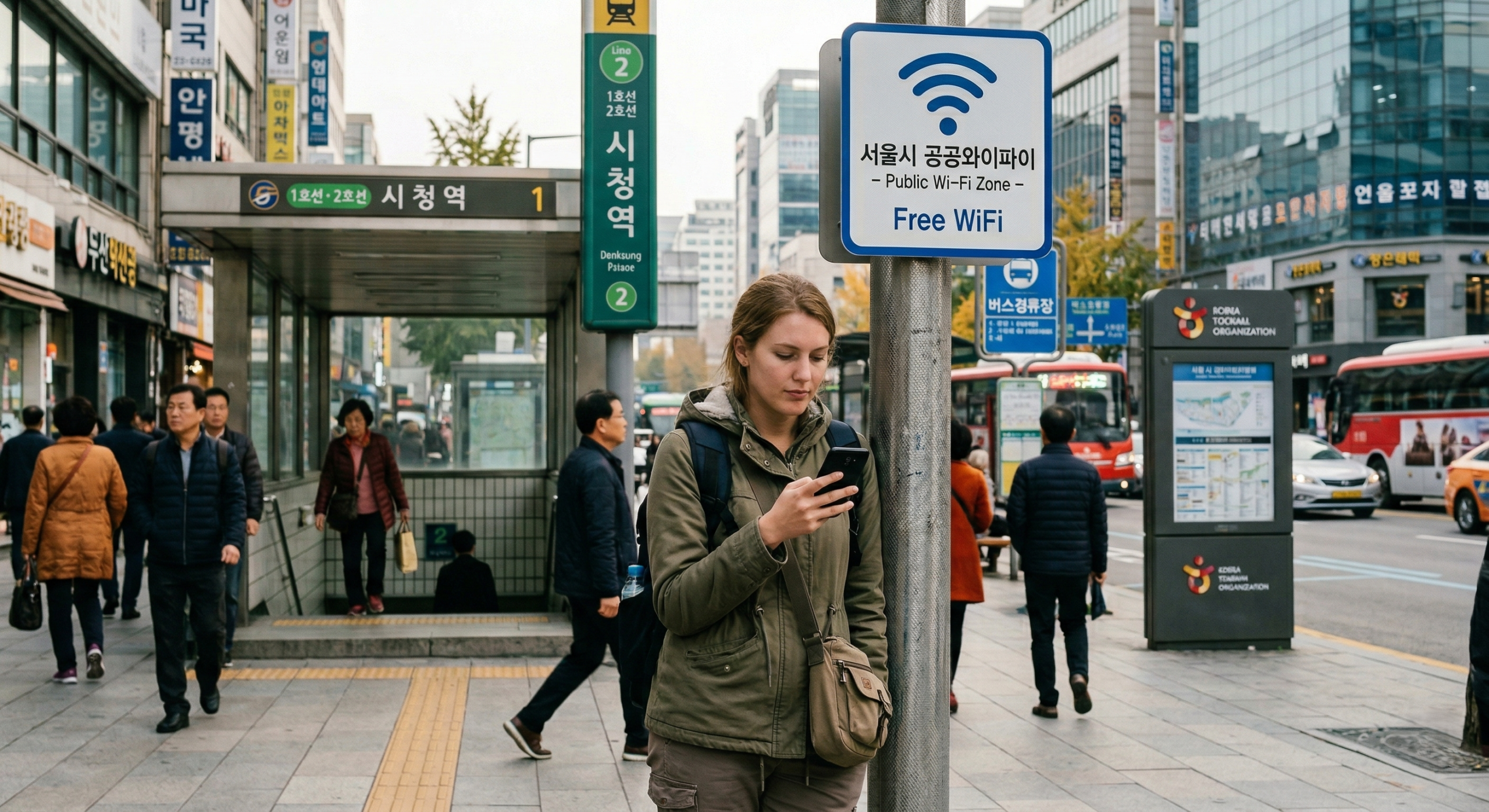
At Incheon Airport, look for the airport’s published network name. In Seoul, use the city’s public-network instructions. A nearby signal with “free” in its name is not enough to identify who operates it.
Which network should you select?
| Location or service | Officially published name | Connection approach |
|---|---|---|
| Incheon International Airport | AIRPORTWIFI | Open Wi-Fi settings, select the airport network and follow any displayed connection page. The airport FAQ identifies this SSID for wireless internet. |
| Seoul municipal secure network | SEOUL_Secure | Seoul’s guide says to enter seoul for both the identity/username and password. Follow current device-specific instructions if additional fields appear. |
| Seoul municipal open network | SEOUL | Select it, then use the general-access button on the page that opens. Seoul says this step is needed on each connection. |
| Other public hotspots or buses | May use Public WiFi Free, Public WiFi Secure or a bus-specific name | Match the operator’s sign and instructions at that location. Do not apply the Seoul municipal password to every network. |
| Hotel or café | The name supplied by that property | Use the password or access instructions from staff or the property’s own sign. |
Seoul’s municipal guide was updated October 16, 2026, and still publishes SEOUL_Secure and SEOUL. The city also documents other public-network names. Read the local sign when a name differs; coverage and naming are not identical at every installation.
Connect and verify one real task
- Stand near the identified access point or in the signed coverage area. Open the phone’s Wi-Fi list and match the network name.
- Join it. If using SEOUL_Secure, enter the published credentials in the appropriate identity and password fields.
- If a sign-in or connection page appears, read it and complete the ordinary access step. A Wi-Fi connection without completed portal access may not provide internet.
- Open a new webpage or refresh a route search. A page already cached on your phone does not prove the connection works.
- Check that the actual service you need loads before leaving the spot. Save the destination address and next directions while connected.
Some secure networks require enterprise Wi-Fi settings or certificate handling that differs between phones. Do not install an unfamiliar profile or ignore a certificate warning merely because this article lists a network name. Ask the venue or public-network operator for the current instructions for your device.
If the phone says “connected” but nothing loads
| Symptom | Useful next check |
|---|---|
| No access page appeared | Return to Wi-Fi settings and look for a sign-in notification. Open the browser after joining. If it still fails, disconnect and reconnect once. |
| Only one app fails | Try a new ordinary webpage. If that loads, the app or account may be the issue rather than the hotspot. |
| Connection drops as you walk | Stop in the covered area and finish the task there. A public hotspot is not a continuous mobile-data connection. |
| Strong signal, repeated loading failures | Try another verified hotspot or your mobile connection. Signal strength does not measure congestion or the hotspot’s connection to the internet. |
| The network demands unexpected payment or sensitive account information | Stop and verify the network with its operator before continuing. |
Illustrative situation: you connect near a Seoul park, load the hotel address and start walking. Two blocks later the map stops updating. Return to coverage if practical, save the next segment, or switch to mobile data. Repeatedly selecting the same out-of-range hotspot will not extend its coverage.
Payments, privacy and travel documents
The U.S. Federal Trade Commission explains that widespread website encryption makes public Wi-Fi generally safer than older blanket warnings suggest. Still, confirm the website address and HTTPS, keep the device updated, and use strong account protection. An encrypted connection does not prove that a website itself is honest.
For a booking or payment, stay connected until the final status is clear and check the seller’s booking record before retrying after a disconnect. For a live ticket, follow the operator’s display rules: a saved screenshot is not universally accepted as a ticket.
For SIM settings, lost connectivity away from hotspots and keeping travel details accessible offline, use the separate mobile-data recovery guide. This page covers identifying and joining Wi-Fi networks.
Sources and checking date
Official information checked October 22, 2026. No hotspot speed, coverage or device connection was tested on location. The troubleshooting example is illustrative.
- Incheon Airport FAQ: wireless internet
- Seoul municipal Wi-Fi connection guide
- Seoul public hotspot names
- FTC public Wi-Fi guidance
Related: Korea eSIM setup · Map apps and saved destinations
1 thought on “Public Wi-Fi in Korea: Official Network Names and Connection Steps”
Comments are closed.